Best control setup for Scale the Depths
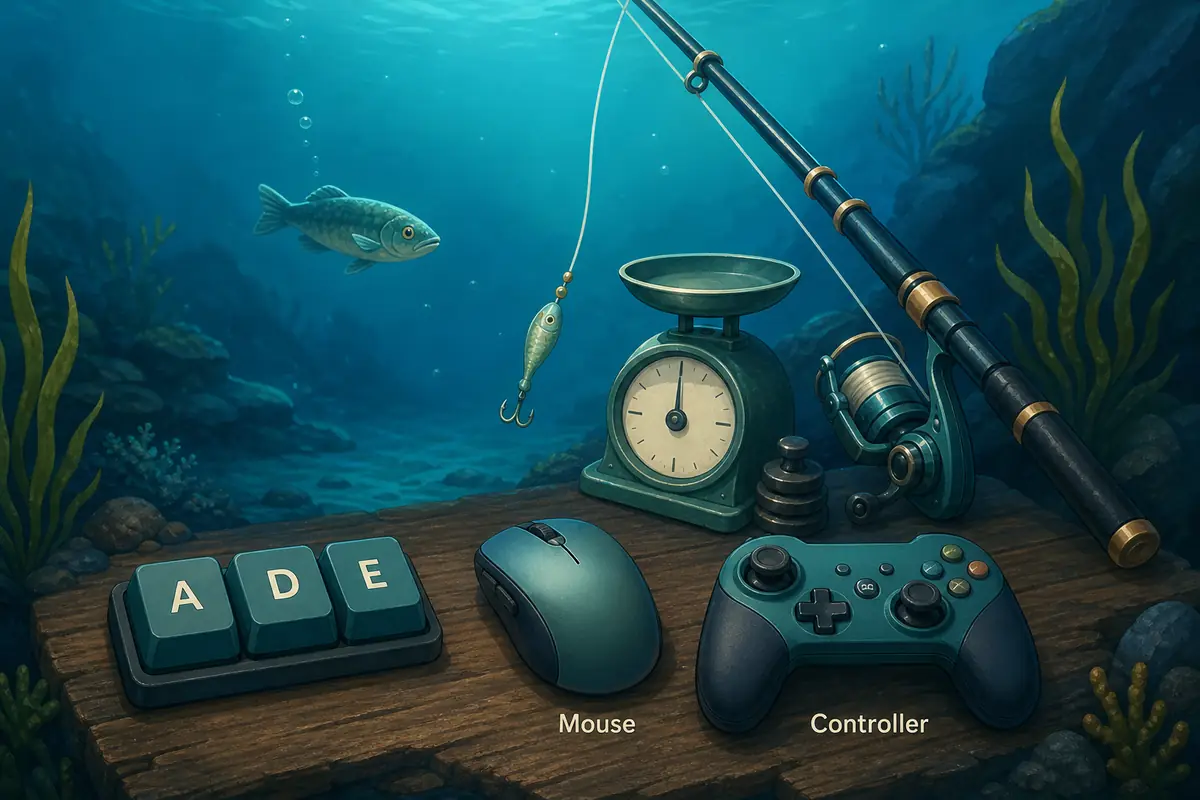
For the embedded browser version of Scale the Depths, start with mouse plus keyboard. Click inside the game frame first, then follow the prompts shown by the WebGL build. The public itch.io page lists A and D for movement and E for interaction, while mouse clicks handle menus and many browser-page actions.
A controller can be comfortable for longer Steam sessions, but browser iframe support depends on the browser, operating system, controller mapping, and whether the game frame has focus. If a controller does nothing in the browser, switch back to mouse and keyboard before assuming the game is broken.
This page is intentionally separate from the progression guide. The guide explains upgrade order, map progress, and ending prep; this page answers input questions such as Scale the Depths controller support, keyboard prompts, mouse focus, fullscreen play, and stuck controls.
Keyboard, mouse, or controller: which is better?
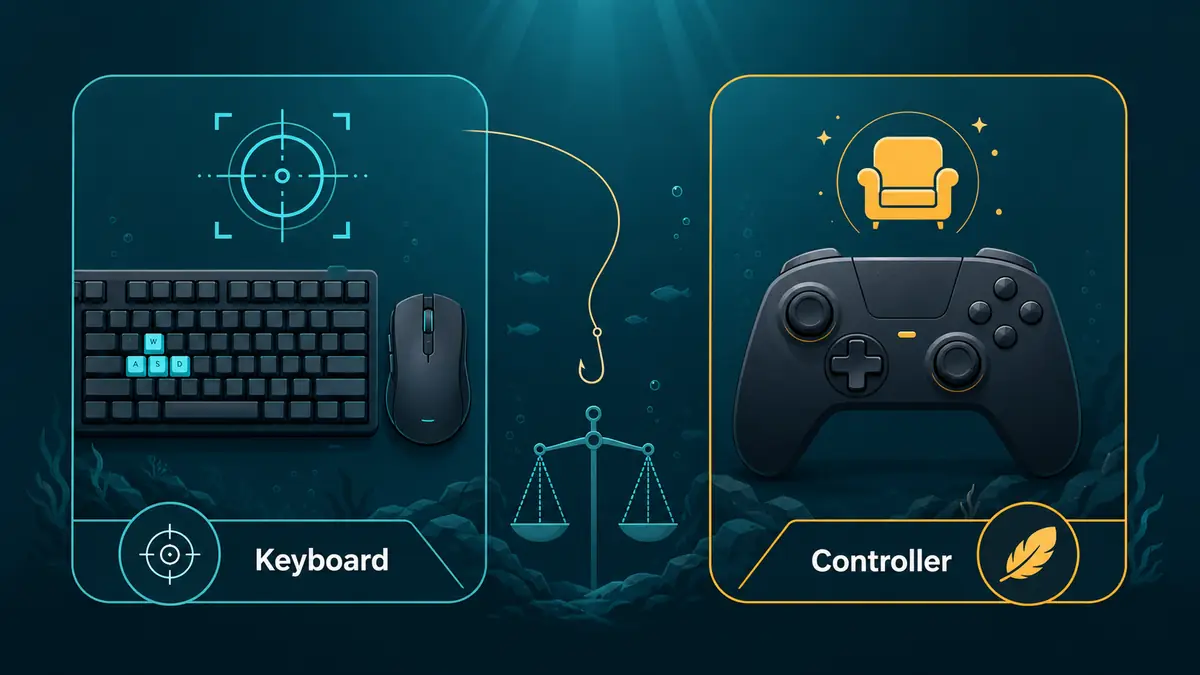
The best input depends on where you play. Browser play is usually most reliable with mouse and keyboard, while a local PC install may feel better with your preferred controller if the current version recognizes it.
| Input | Best for | Notes |
|---|---|---|
| Mouse + keyboard | Browser play and first runs | Most reliable for clicking menus, focusing the iframe, moving with A/D, and using E when interaction prompts appear. |
| Keyboard only | Short focused sessions | Works well after the iframe has focus, but some menus or page controls may still expect the mouse. |
| Controller | Comfort testing in the PC version | Try it after launching the official version. Browser support can vary, so keep keyboard nearby for troubleshooting. |
| Touch screen | Quick experiments only | The browser build may load on mobile devices, but touch controls and WebGL focus can be inconsistent. |
How to make keyboard controls respond in the browser
Click inside the game frame
Browsers send keyboard input to the active element. If the page or address bar is focused, Scale the Depths will not receive A, D, E, or other prompts.
Use fullscreen if the canvas feels cramped
Fullscreen reduces accidental page scrolling and makes it easier to keep the cursor and keyboard focus on the game.
Check browser privacy and storage settings
Strict privacy settings, blocked third-party storage, or private browsing can affect WebGL games and local progress. They can also make the frame reload more often.
Restart the frame before changing devices
If you switch from keyboard to controller, refresh the game frame or reopen the page so the browser can detect the device cleanly.
Scale the Depths control reference
Exact prompts can change between the browser build and the full PC release, so treat this table as a practical starting point and follow any prompt shown in-game.
| Input | Common use | Tip |
|---|---|---|
| Mouse | Click menus, buttons, upgrades, fullscreen controls, and page links. | Click the game canvas once before using keyboard keys. |
| A / D | Left and right movement when the WebGL build shows movement prompts. | If A/D scrolls nothing or does nothing, the iframe probably does not have focus. |
| E | Interact, collect, or confirm when an in-game prompt asks for it. | Do not spam E while menus are loading; wait for the prompt to appear. |
| Fullscreen | Makes the game easier to read and keeps the canvas central. | Use fullscreen for longer sessions or when browser chrome makes the game feel small. |
| Controller | Possible comfort option in supported versions. | Map support can vary. If buttons are not detected, use keyboard first and check the official store notes. |
Fix common control problems
Most Scale the Depths control issues in a browser are focus, fullscreen, or device-detection problems rather than permanent save or game errors.
- If keyboard input does nothing, click inside the iframe and try A/D or E again.
- If the page scrolls while you play, enter fullscreen or click the game frame again.
- If a controller is not detected, reconnect it before loading the page, then refresh the frame.
- If the browser build feels cramped, use fullscreen before judging the controls.
- If a mobile browser fails to handle input, use desktop browser play or the official PC version instead.
- If progress or focus resets often, avoid private mode and do not clear site data between sessions.
Sources and version notes
Use official pages for current platform details. This site summarizes practical browser behavior without claiming to be the developer.
itch.io page
The public itch.io page is the best place to confirm the browser build and its listed movement or interaction prompts.
Open itch.ioSteam page
Use the Steam listing for current release details, supported platforms, and store-level updates.
Open SteamDownload guide
Use the download guide when you need to choose between browser play, Steam, GOG, and unsafe mirror results.
Read download guideScale the Depths controls FAQ
Does Scale the Depths work better with keyboard or controller?
For browser play, keyboard plus mouse is the safest default. A controller may feel better in a supported PC version, but browser iframe detection can vary.
Why are A, D, or E not working?
The game frame probably does not have focus. Click inside the Scale the Depths iframe, then try the keys again.
Can I play Scale the Depths with only a mouse?
You can handle many menus with the mouse, but movement or interaction prompts may still ask for keyboard keys such as A, D, or E.
Does the browser version support controllers?
Controller behavior depends on the browser and device mapping. If the controller is not detected, use mouse and keyboard or test the official PC version.
Why does the page scroll when I press keys?
The browser page, not the game, is receiving input. Click the canvas again or use fullscreen mode.
Are controls the same in the Steam version?
The same general loop applies, but exact prompts, device support, and settings can differ. Check the official version you are playing.